Replacing Raycast with Spotlight and Shortcuts

In keeping with my ongoing (and maybe misguided) mission to use more of the default Apple apps on all of my devices, I recently decided to kick the tires on the new version of Spotlight that shipped in macOS Tahoe last Fall. I switched from Alfred to Raycast a few years ago after using Alfred for probably 10 years. This was mostly in an effort to consolidate some of my disparate apps into a single tool.
Raycast can do a lot, but my use honestly boiled down to basic app and web launching, clipboard history, snippet management and some very basic automations. Pre-Raycast, these were separate apps (if they were apps at all) but it did manage to consolidate them for me. This was before the big upgrades to Spotlight, though, and before I was fully Shortcuts-pilled by Stephen Robles. Below, I'm going to outline how I managed to replicate (and in some cases, improve upon) 99% of what I used Raycast to do using Spotlight and Shortcuts.
App and Web Launching
This is going to sound obvious but I'm going to say it anyway: you can launch apps with Spotlight! Type "visu" and hit Return and odds are good that as long as it's installed, Visual Studio Code will open. Same for "Chr" and Chrome, "Not" and Notes and...you get the idea. This is probably the absolute bare minimum that any of these launchers tools is expected to do but paired with Shortcuts and a knowledge of how certain web apps work, you can take this further.
Despite being the hipster at my rural college in 2011 who insisted on doing all of his work using what was then called the iWork suite, I am all in on Google Docs (Slides, Sheets, etc.) these days. Google Docs has some very handy shortcuts (lower-case "s") for creating new files:
- Google Doc: https://docs.new
- Google Sheet: https://sheets.new
- Google Slides: https://slides.new
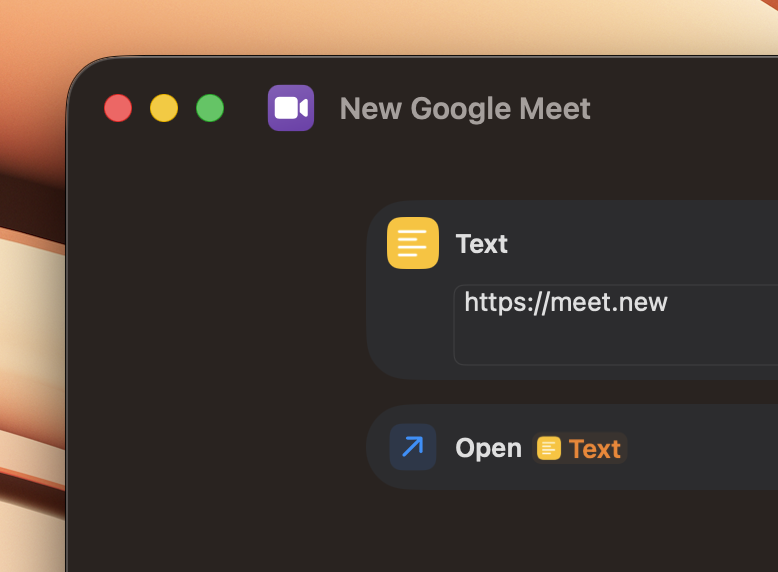
Each of these drops you instantly into a new, blank file in the corresponding app. Remarkably, Google Meet has one of these too:
- New Google Meet: https://meet.new
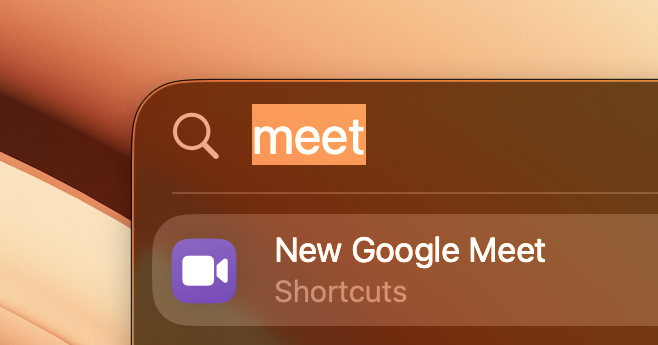
I made heavy use of the "instant meeting" function for Google Meet (and Zoom before that) in Raycast and these links gave me the foundation to replace that and fold in Docs too, which is huge for me. My switch to Spotlight coincided with a switch from Zoom to Google Meet, so it was the perfect time to retrain all of the muscle memory I had tied to hitting command + space, typing "z", hitting return and being dropped into a new Zoom call.
I made a Shortcut (upper-case "s") for each of these links so I could trigger them in Spotlight the same way, so now I have similar "instant" access to all four of these tools.
Clipboard History
This is probably the most boring of these tools because it's baked directly into Spotlight in macOS Tahoe. Despite this, I want to call this out for a couple of reasons:
- Going back to using a Mac without clipboard history after getting used to it feels like being dropped in front of a stone tablet.
- Stephen Robles has unlocked an ancient power in Shortcuts for iOS in this same area.
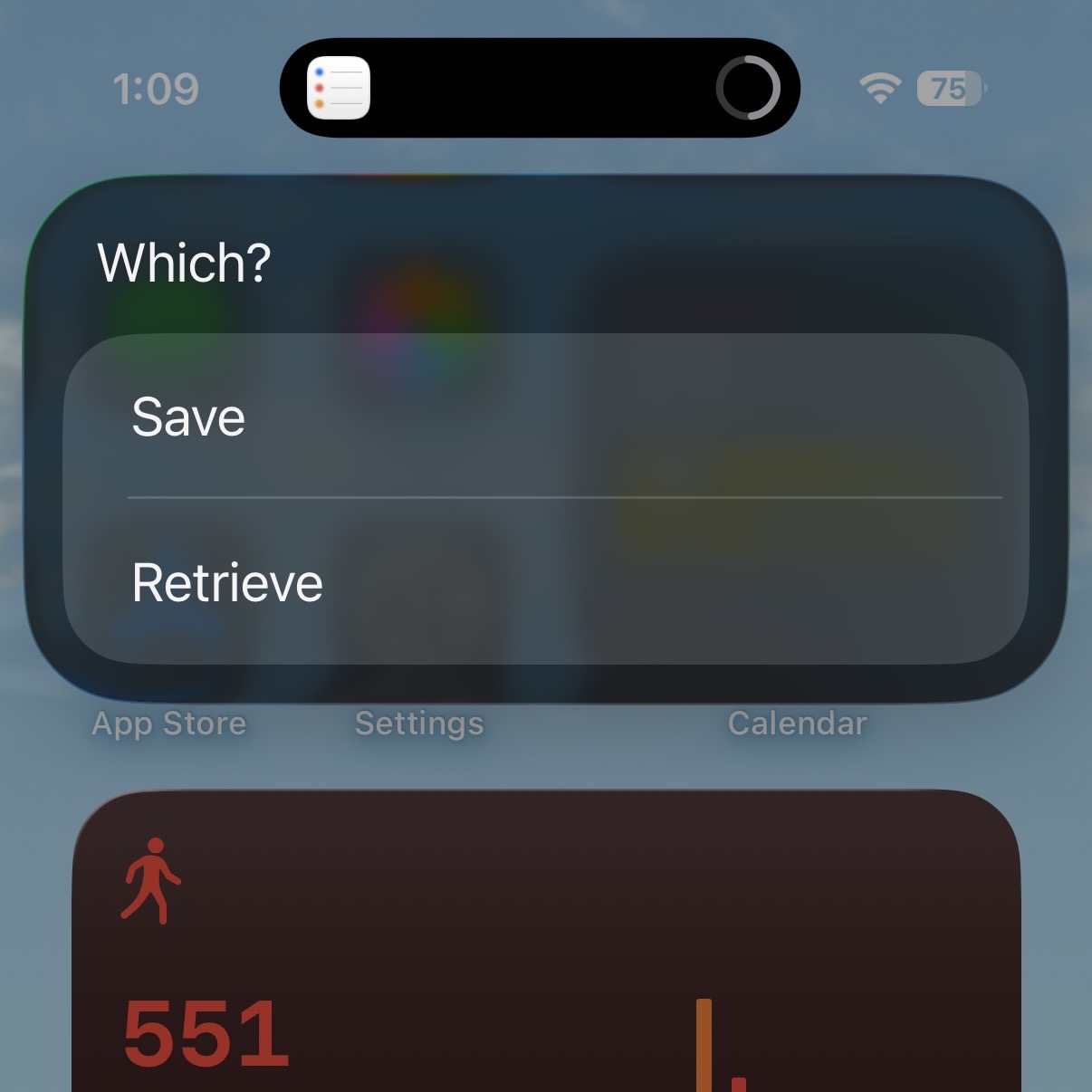
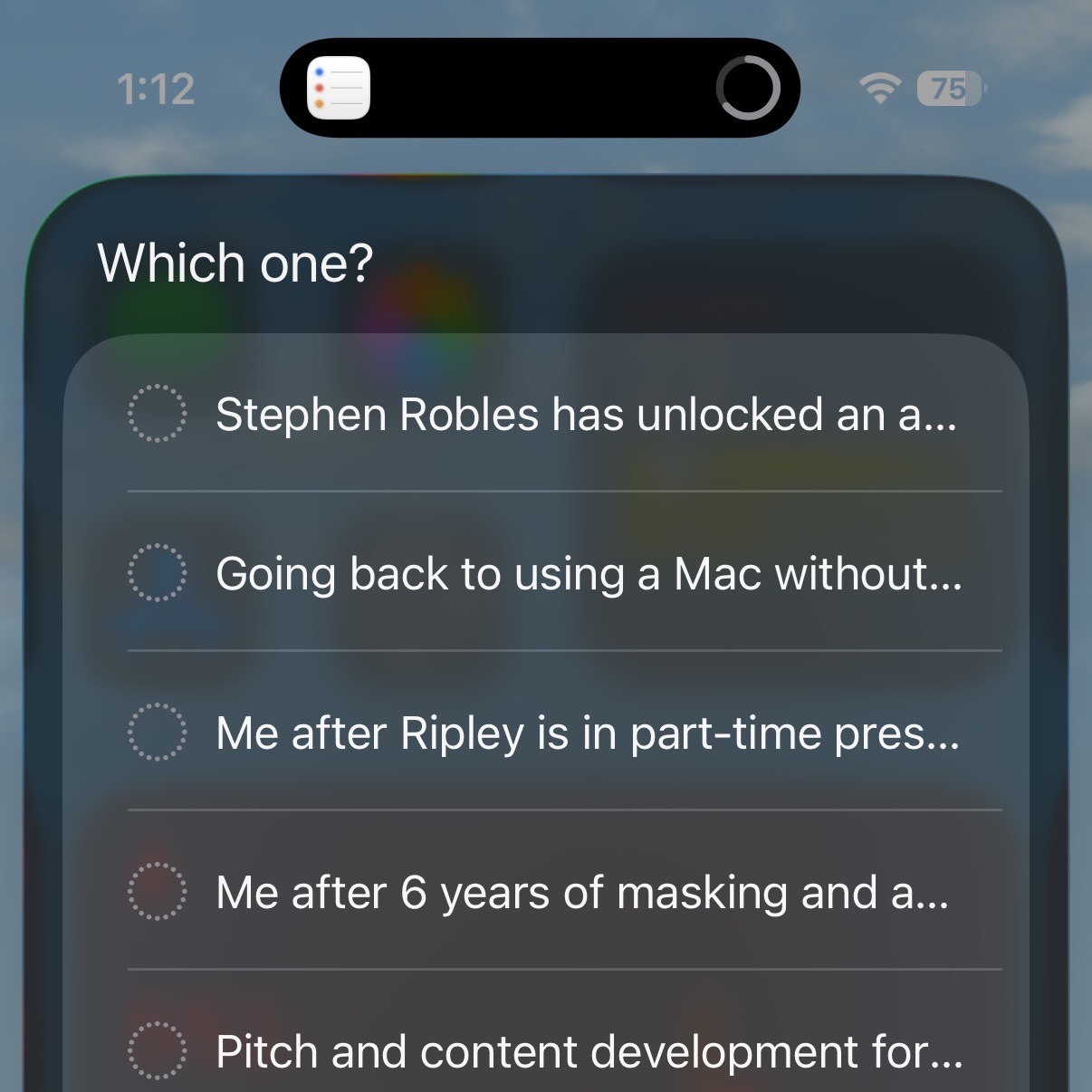
In his May 6th video on Action Button Perfection, Stephen drops an absolute bombshell of a Shortcut around 8:12: he was able to get a very basic clipboard history working in iOS. There are a couple of caveats like having to manually save and retrieve the items but even then, this has saved me a ton of time and it already feels indispensable. I super recommend checking out his video and grabbing the Shortcut. Part of what makes this so cool is that it uses Reminders under the hood to store the data, which means it syncs via iCloud too! If you save 10 things on your Mac, you can retrieve them on your iPhone. It's genuinely awesome and feels so obvious once you set it up.
Back on the Mac though, my biggest complaint coming from Raycast is that there is no way to set up a custom keyboard shortcut for opening the clipboard history. Coming from Raycast, I was used to hitting command + shift + v to get my history but now I have to use command + shift + 4 and there is no way to change it. It's also weird that it doesn't work if you don't allow Spotlight to show files in results but I guess that's the state of things in Cupertino.
Snippet Management
Stephen's clipboard history Shortcut was the direct inspiration for this one. In Raycast, you can store common snippets of text and quickly retrieve them. I mostly used this for code snippets that I found myself having to dig up over and over, like the exact syntax for a media query in CSS.
I moved all of my snippets from Raycast into a folder in the Notes app. With them placed, I was able to build a snippet management Shortcut that prompts me to choose from the notes in the folder and copies the body of the selected note to my clipboard.
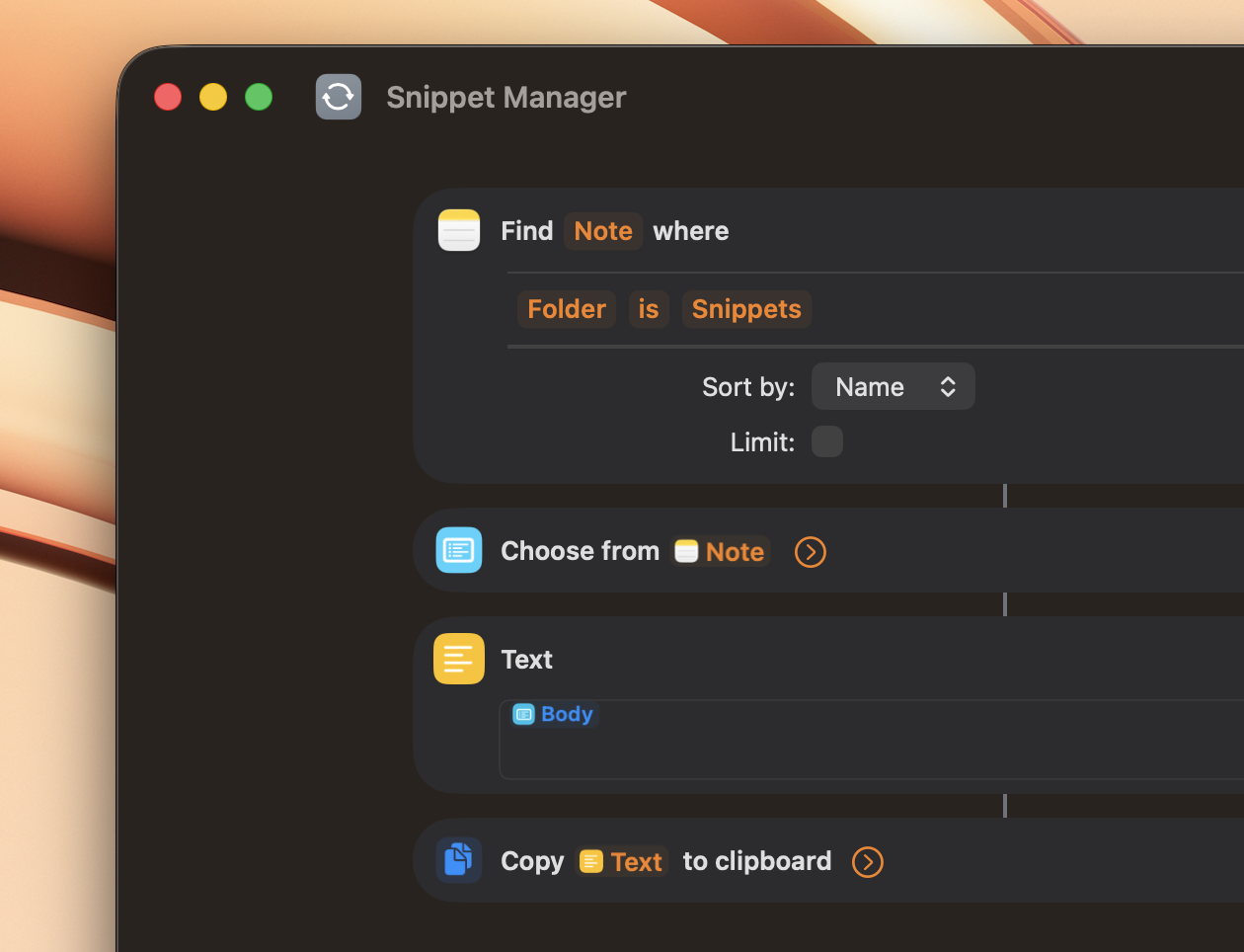
That's it. And again, just like the clipboard history, it syncs via iCloud! And if you live the multiple Apple Account life like I do, you can share a folder with multiple accounts and use the same central repository of snippets for both!
Basic Automations
This is going to be a little bit of a grab bag because these aren't massive utilities but I do use them all at least a few times a week.
Generating Lorem Ipsum
Believe it or not, web development requires using a ton of filler text. This Lorem Ipsum Shortcut prompts you for a number of paragraphs and then uses Apple Intelligence to generate that many paragraphs of filler text and copy them to your clipboard.
Compress PDFs
In a similar vein, content management on the web brings you into contact with many PDF's! This PDF compression Shortcut will attempt to compress a PDF using the default PDF actions built into Shortcuts and if it fails to save any space, it will prompt you to use an online service.
Clipboard to File
Again, web development requires weirdly specific and repetitive tasks of its practitioners. I regularly have to copy large amounts of text or code and paste them into new files. This Shortcut to save text takes whatever is currently on your clipboard and prompts you to save it in the current active Finder window. I actually built this yesterday using Federico's incredible new Shortcuts Playground for generating Shortcuts using Claude.
And that's it! I'm sure I'm going to be spending way too much time making these (or stealing them from Stephen) over the next few months but I've been super impressed so far.